
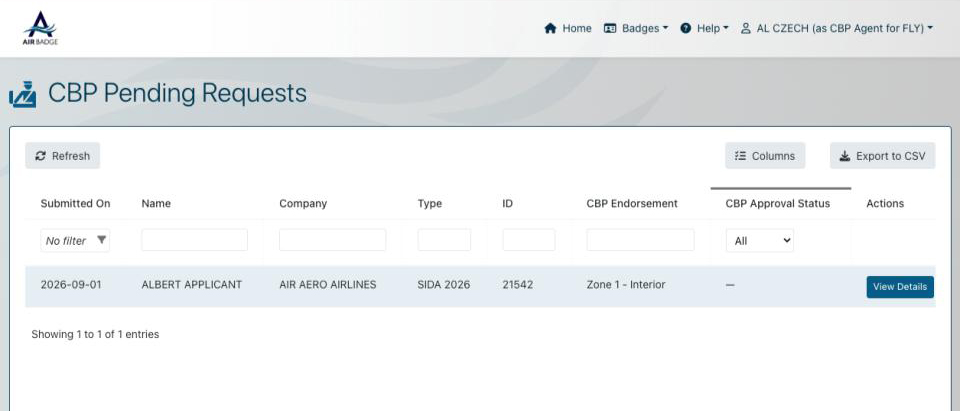
For CBP agents using AirBadge:
AirBadge collects CBP endorsement requests from airport badge applications and presents them to you for review in one place. When a signatory requests a CBP endorsement as part of a badge application, the applicant’s CBP Form 3078 is populated from their application data and eSigned. The completed request then appears in your review queue.
Getting access
A user with an ASC role at the airport provisions your AirBadge access as a CBP Agent. Contact your airport’s badge office to request a CBP Agent role.
Your account is scoped to a single airport. Each AirBadge environment is self-contained, so a separate account is required for each airport where you review CBP requests.
Work queues
Two queues are available in AirBadge.
- CBP Pending lists requests awaiting your review.
- CBP Active lists the active badge population with a CBP endorsement. Use this queue for self-service reporting. You can adjust the visible columns, filter by any column, and export the results to CSV.
Reviewing a request
- Open the CBP Pending queue.
- Locate the request and select View Details.
- Review the request details.
- Select an action.
The CBP Endorsement Details window includes:
- Applicant information
- Company and authorized signatory
- Badge ID, badge type, and current status
- Endorsement requested
- The completed Form 3078, available to view or download
- The applicant’s identity documents, such as a driver’s license or passport
- CBP approval history, when available, showing prior badge numbers, companies, and effective dates
When prior approval history exists, it appears here so you can review the applicant’s endorsement record without leaving the screen.
Recording a decision
Three actions are available.
- Record Approval. Approves the endorsement request.
- Record Denial. Denies the endorsement request. The airport is notified.
- Mark “Hold”. Places the request on hold. While a request is on hold, training is not assigned to the applicant, because the vetting gate has not opened.
Email notifications
If the airport has enabled it, you receive an email when an application is ready for your review. The email directs you to the CBP Pending queue. Contact the badge office if you are not receiving these notifications and would like to.