
Stop List Settings
The Stop List is the list of badges that should be denied access at your airport. Configure how the Stop List is distributed to your team, what the outgoing report looks like, and how badges are added to the Stop List. Find your Stop List settings under Tools & Settings > Automations > Stop List.
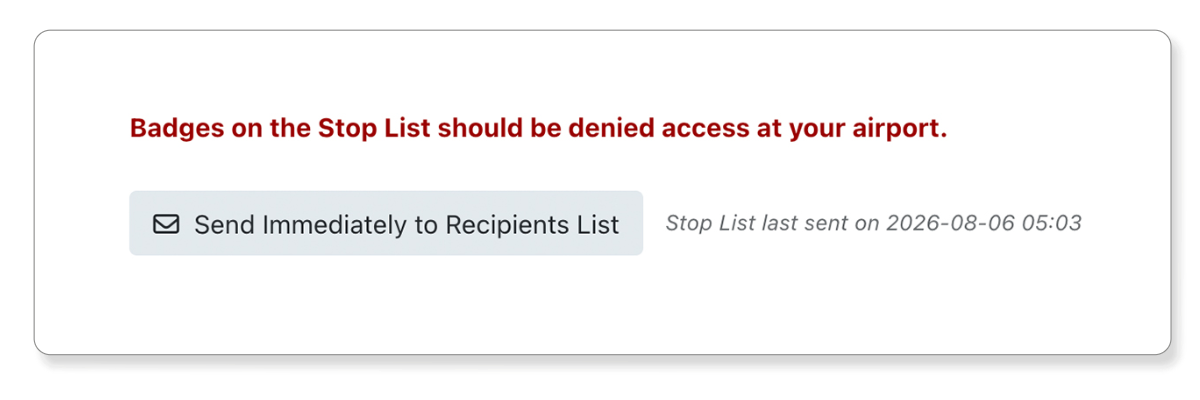
At the top of the page, you’ll find a Send Immediately to Recipients List button. This sends the current Stop List to all enabled recipients right away, regardless of your throttle or schedule settings. The date and time of the last send is displayed next to the button.
Distribution Options
Distribution Options controls who receives Stop List emails and when they are sent.
Recipients
Choose which roles at your airport receive Stop List emails by toggling each role on or off:
- Authorized Signatories
- Trusted Agents
- Airport Security Coordinators
- Operations (Ops)
- TSIs (TSA)
- Gate Guards
Additional Notification Recipients
Use this field to add email addresses for anyone who should receive the Stop List but does not have a role-based account in AirBadge. Type an address and press Enter, or paste a list separated by commas or semicolons. Duplicate addresses are merged automatically, and invalid addresses are called out below the field.
Automatic Notifications
Toggle Enable automatic notifications to have AirBadge automatically email the Stop List to your recipients when badges are added to the list.
The Email throttle sets the minimum time between automatic sends. A send is only triggered if the list has changed since the last send.
For example, if your throttle is set to “Every 24 hours” and a badge is added at 2:00 PM, AirBadge checks when the last email was sent. If it was sent less than 24 hours ago, the system waits until the throttle period has passed before sending the next update.
Daily Scheduled Notification
Toggle Enable daily scheduled send to have AirBadge email the Stop List at the same time every day. Unlike automatic notifications, the daily scheduled send goes out regardless of whether the list has changed. This is useful for airports that require daily compliance recordkeeping.
Set your preferred Send Time using the hour and minute dropdowns. The time is based on your local airport time.
Content Options
Content Options controls what the Stop List email looks like and what data is included in the attached report.
Email Content
Customize the Subject and Body of your Stop List emails. Both fields are required. Use the body to provide context for your recipients about what the Stop List is and how to use it.
Report Format
Choose which file format the Stop List report is attached as:
- CSV – a spreadsheet-compatible file
- PDF – a formatted document
- Both – attaches both a CSV and a PDF to each email
Banned Individuals
Toggle Include banned individuals list to append a list of banned individuals to the Stop List report. Banned individuals are people who are no longer allowed to possess a badge at the airport. When enabled, this list is included alongside the standard Stop List in outgoing emails.
Columns
Choose which columns appear in the attached report. Start from a preset, then adjust individual columns as needed.
Presets:
- Minimal – a reduced set of columns
- Standard – the default column selection
- Full – all available columns
Available columns include Added On, Badge Holder, Number, Type, Status, Expires On, Signatory, and Company. Badge Holder, Number, and Status are required and cannot be removed.
Drag columns to reorder them. The column order on this screen determines the column order in the attached report.
Group By
Optionally group rows under headers in the report. Grouping is available for Type or Company only. Leave the dropdown blank for no grouping.
Sort By
Choose which column the report rows are sorted by.
Badge Status Options
Badge Status Options controls when and how badges are added to the Stop List.
Badges are added to the Stop List when they become “unaccounted-for.” This generally means badges that are inactive, not expired, not temporarily suspended, and have not been returned to the badge office.
Suspended badges are not included on your airport’s Stop List. AirBadge can optionally auto-terminate suspended badges after a set number of days. Configure this at Tools & Settings > Automations > Suspended Badges.
For a full explanation of how AirBadge calculates the Stop List, read the article in our Help Center.
Lost, Stolen, or Destroyed
Badges reported as lost, stolen, or destroyed are added to the Stop List immediately. There is no delay or grace period for these statuses.
Signatory-Terminated Badges
When a signatory terminates a badge, they must indicate whether the badge is currently in their possession. This affects how the badge is handled on the Stop List:
- Signatory did not collect the badge: The badge is added to the Stop List immediately.
- Signatory indicated they have collected the badge: The badge is held for the grace period. If it is not returned to the badge office before the grace period expires, the badge is then added to the Stop List.
Grace Period
The grace period is the amount of time a signatory has to return a terminated badge to the badge office before it is added to the Stop List.
Select a duration from the dropdown. Choose “No Grace Period” if a terminated badge should always be added to the Stop List immediately, even when the signatory has indicated they have it in their possession.
Bypass Grace Period
The Bypass & add badges now button immediately adds every terminated badge currently in the grace period to the Stop List, without waiting for the grace period to expire.
The number of badges currently in the grace period is displayed next to the button. Use this when you need to force all pending badges onto the Stop List right away.